
How to Add Fitments Using Batch Upload in PCFitment

This guide explains how to add multiple vehicle fitments at once using the PCFitment Excel template and the Batch Upload feature.
It’s the fastest and most efficient way to upload a large number of fitments compared to adding them manually.
Step-by-Step Guide
Follow these steps to prepare, upload, and verify your fitment data using the Batch Upload tool.
Step 1: Download the Batch Upload Template
- From the main Dashboard, click on the Batch Upload tab in the top navigation bar.
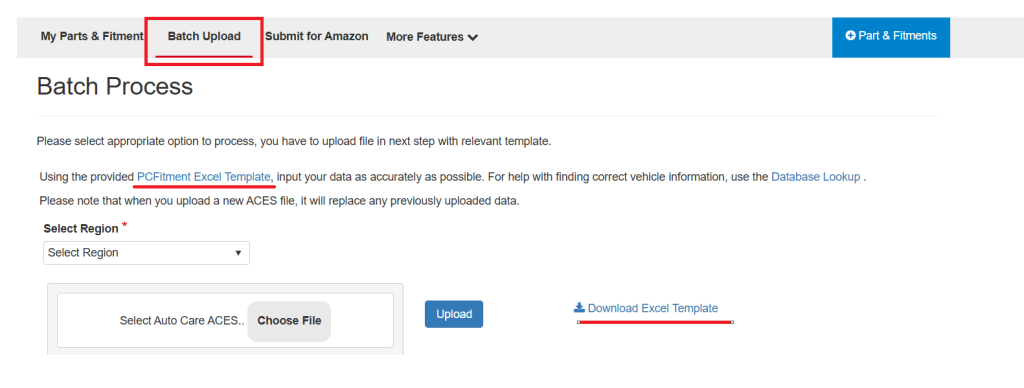
- On the Batch Process page, click Download Excel Template.The Excel file (e.g., AcesTemplate.xlsx) will begin downloading.Save the file to your computer — you’ll use this template to enter your fitment data.
Step 2: Fill Out the Excel Template
This step is crucial — accuracy in your data ensures correct vehicle linking.
- Open the downloaded Excel template and fill in the required columns with accurate part and vehicle details. Key fields include PartNumber (must already exist in My Parts & Fitment), Make, Model, and Year.
- Add any additional details such as SubModel, FuelTypeName, HorsePower, KilowattPower, and BodyType for better accuracy. Enter one row per vehicle fitment, review your data carefully, and then save the file for upload.
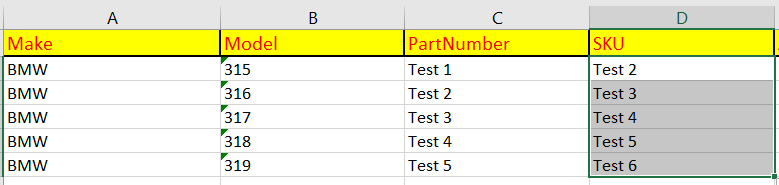
Important: Ensure all vehicle details are accurate and correctly formatted.
Step 3: Upload Your Completed File
- Go back to the Batch Process page in your PCFitment account.
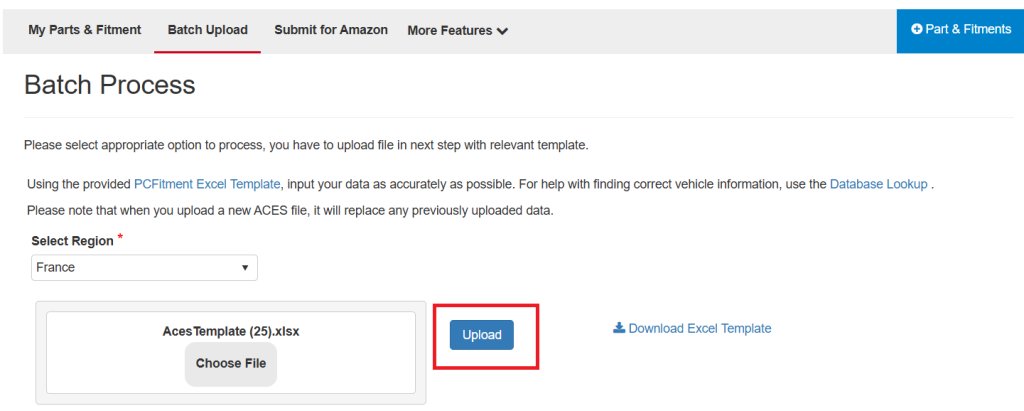
- Select Region: Choose the appropriate region from the dropdown menu (e.g., France).
- Choose File: Click the Choose File button and select your completed Excel template.
- Upload: Click the Upload button to start the process.
- PCFitment will begin reading and processing your file.
Step 4: Verify the Upload
Once the upload is complete:
- Wait a few moments while the system processes your file (a loading icon will appear).
- When finished, the page will refresh automatically.
- Scroll to the bottom to view the Successfully Add/Update Data summary — it shows: